Connect Outreach Master with LinkedIn — step by step
In this guide, you will securely connect Outreach Master to LinkedIn, assign the necessary permissions, send a first test message, and set up the HubSpot field for LinkedIn IDs/links.
Prerequisites
-
Active LinkedIn account (ideally with a stable history)
-
Access to Outreach Master
-
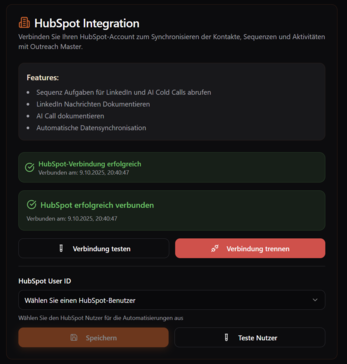
HubSpot is connected (for activity logging and field mapping).
-
Pop-ups allowed in the browser (for the LinkedIn login window).
Authentication (OAuth) — Step by step
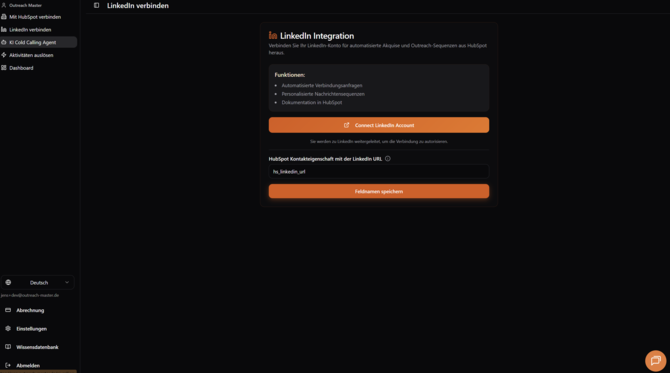
1) Open ‘Connect to LinkedIn’
- In Outreach Master, click on ‘Connect LinkedIn’ in the left sidebar.
- Click on the ‘Connect LinkedIn account’ button.
2) LinkedIn login in a new window
-
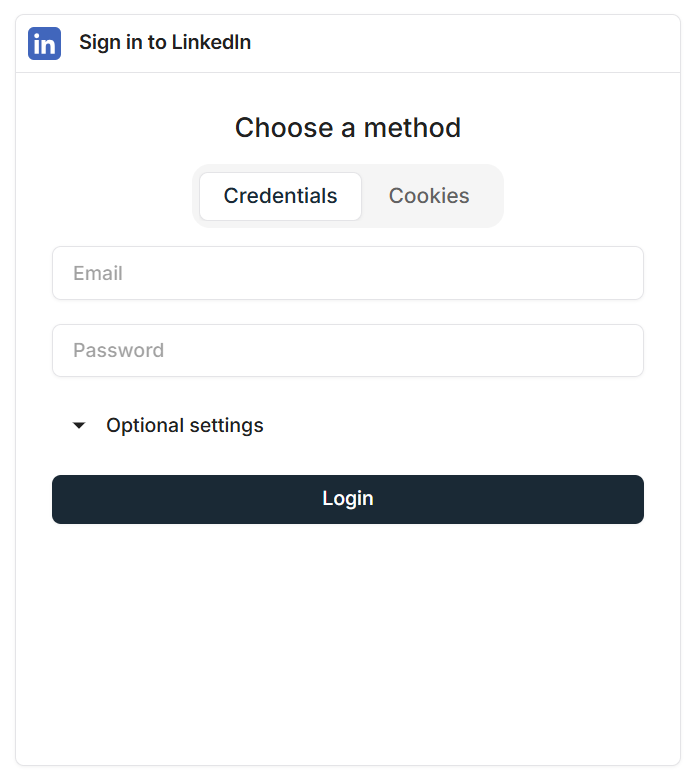
A new window/tab will open. Log in with your LinkedIn email address and password.
3) Confirm MFA
-
LinkedIn usually requires MFA confirmation (app or email code).
4) Check success
-
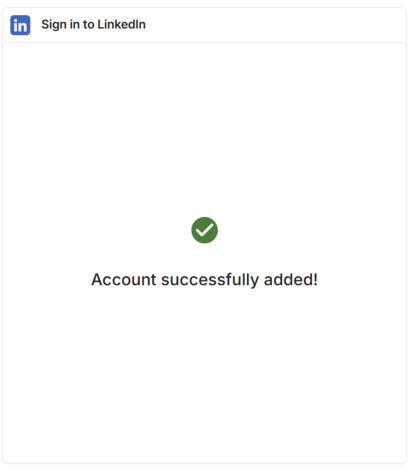
After successfully logging in, ‘Account successfully added’ appears.
-
Switch back to Outreach Master: the status indicates that the connection was successful.
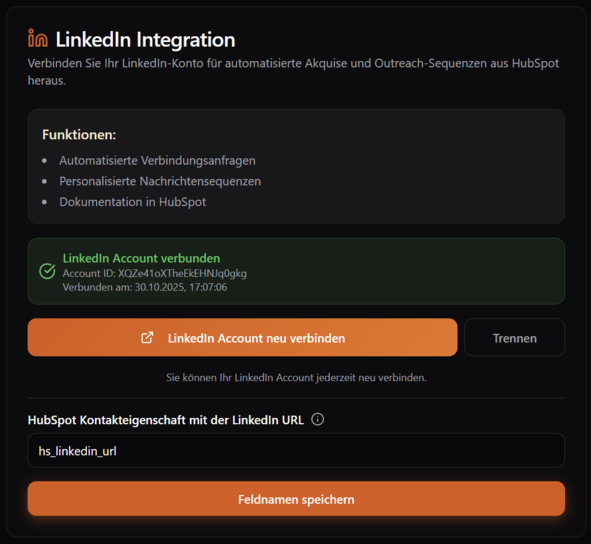
HubSpot field mapping (LinkedIn links/IDs/slugs)
In order for Outreach Master to work effectively and log activities correctly, the HubSpot field must be stored for LinkedIn profiles.
-
Open Outreach Master → Settings → Connect LinkedIn.
-
Property mapping: select the field in which you store LinkedIn data, e.g.:
hs_linkedin_url(Standard field from HubSpot)
Tip: If you have multiple variants (URL, ID, slug, etc.), Segal is there for you. Outreach Master can handle a wide range of data, such as the following:
- Link: https://www.linkedin.com/in/jenswoehrle
- Slug: jenswoehrle
- ID: ACoAACMczs4By-nX1zr-8WmEs8Iwp2B45zu14Y0
- ID link: https://www.linkedin.com/in/ACoAACMczs4By-nX1zr-8WmEs8Iwp2B45zu14Y0
Send first test message
-
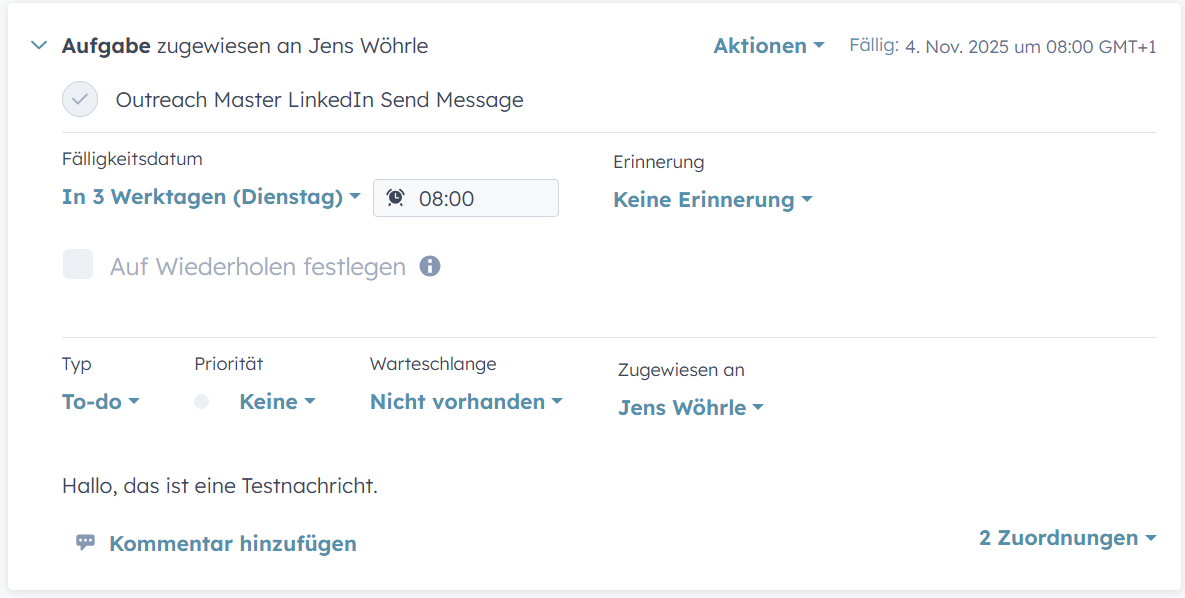
Select a test contact in HubSpot
- Create a task titled ‘Outreach Master LinkedIn Send Message’
- Check whether the activity appears in the backlog in the Outreach Master Dashboard:
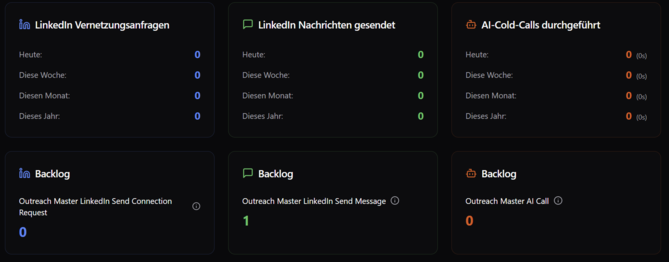
- The LinkedIn message will then be sent on the next working day and documented in HubSpot.
Errors & Troubleshooting
Pop-up blocked
-
Disable pop-up blockers in your browser or add the domain to the allow list.
MFA fails / no code
-
Select a different MFA channel (app vs. email).
-
Wait (2–3 minutes), then send again.
-
Check your spam folder for email codes.
‘Account successfully added’ does not appear
- Check in Outreach Master whether the connection could be established.
-
Reload the page; if necessary, log out → log back in.
-
Check whether browser extensions (ad blockers/script blockers) are interfering.
HubSpot field not filled in
-
Select the correct property in the mapping.
-
Check whether the field actually has a value (URL/ID/Slug) for the contact.
-
Use test contact with valid LinkedIn information.
If you encounter any difficulties, please feel free to contact Customer Service at any time.